
How to use Pitchlane with Smartlead (Native Integration) + AutoFollowUp Subsequence
Updated
Once you send your first lead from Pitchlane to Smartlead, you’ll automatically get 500 extra free credits (only trial users or subscribers).
This guide will show you how to set up the native Pitchlane to Smartlead integration to automatically send your rendered videos into Smartlead, and more.
Setting up your API Key
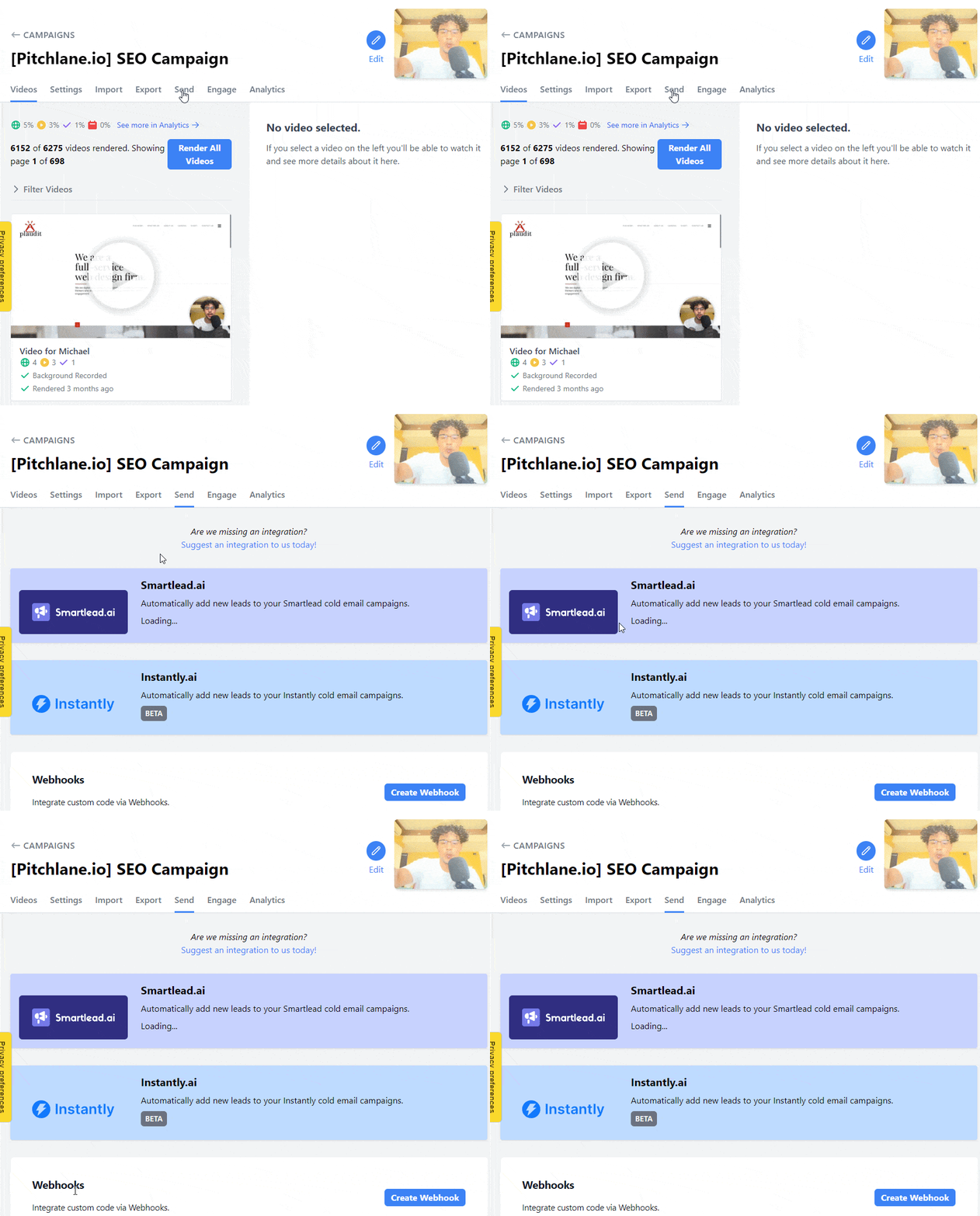
- Navigate to the “Send” tab of your campaign.
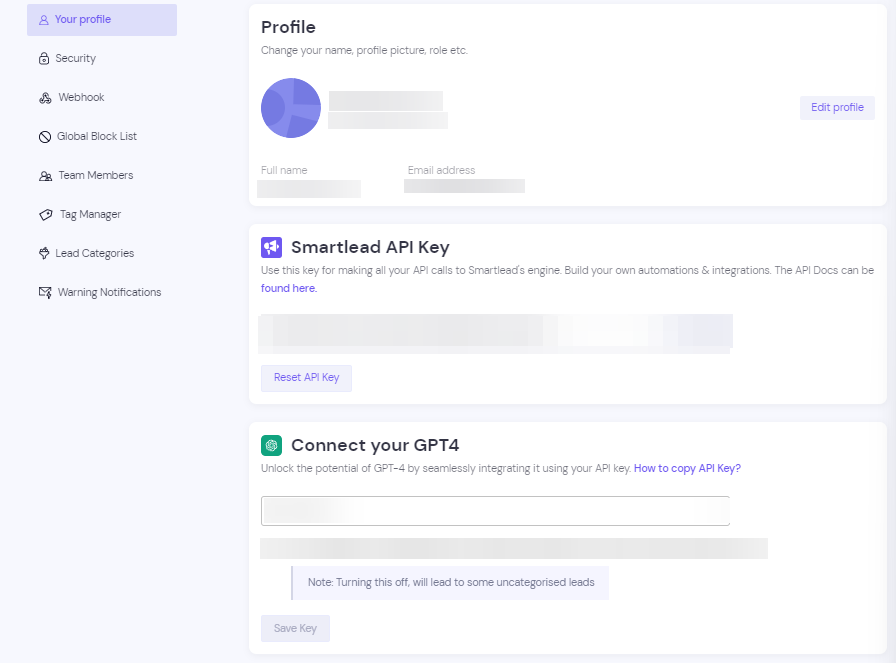
- Navigate to your Smartlead Settings in a new tab.
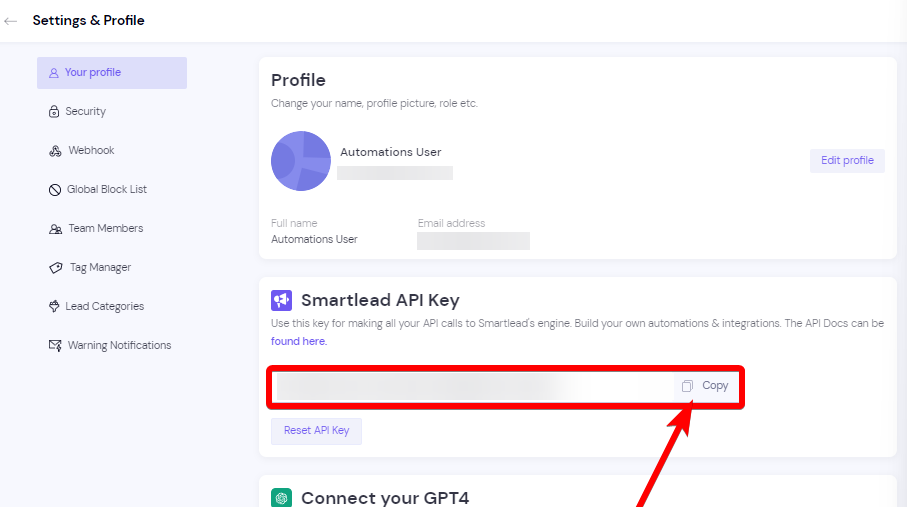
- Copy the API key and paste it into the API key field in Pitchlane.
Setting up your Campaign
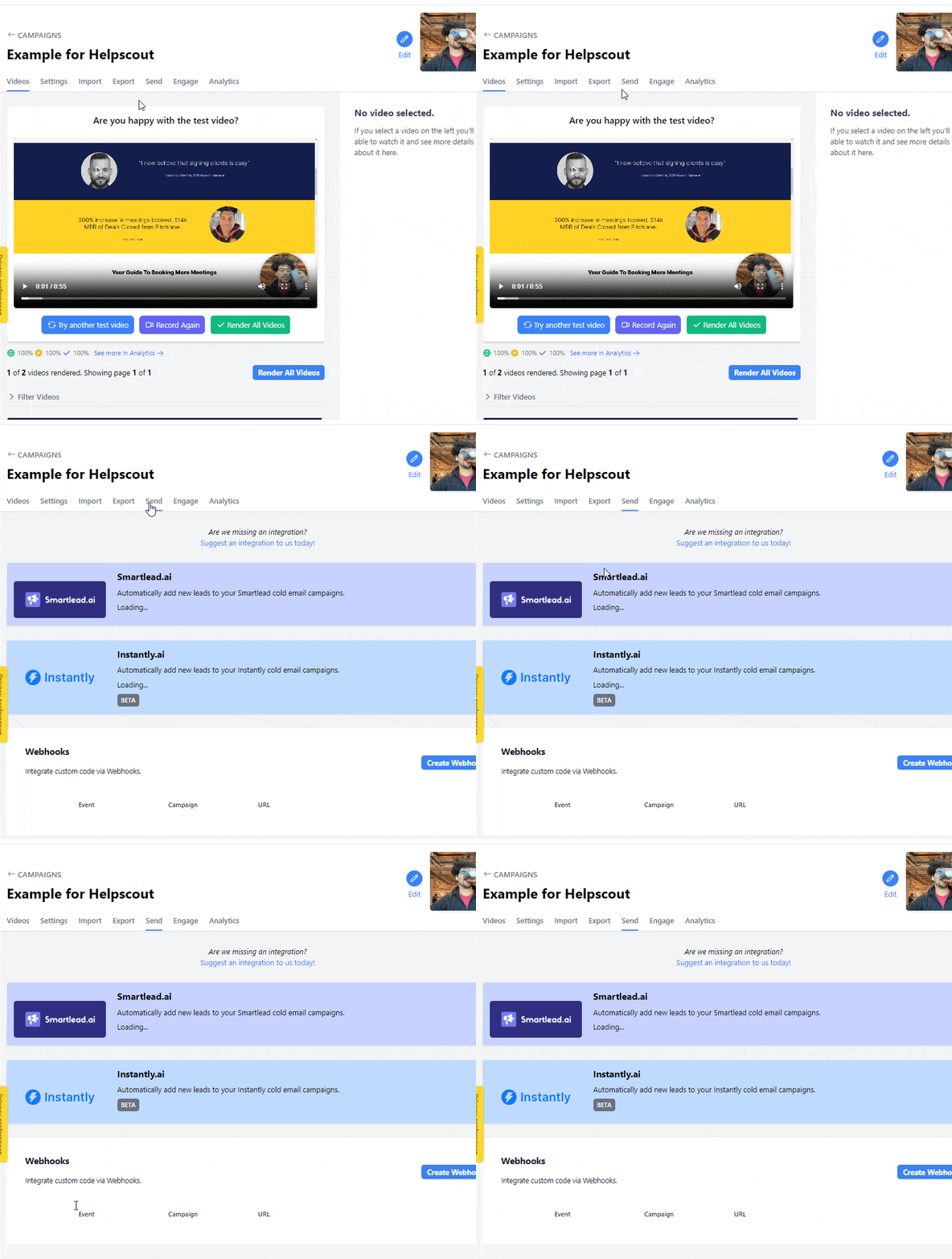
- Navigate back to Pitchlane & select the campaign you want to send your Pitchlane videos into from the dropdown and select “Save”. You can search the list by typing in the name of your campaign.
-
Click into the “Smartlead Variables” section
-
For each of the standard Smartlead variables, you can select the field from your lead data in Pitchlane that corresponds to it. For example, if your CSV had a field called “Email Address”, you would select that for the “email” variable and select “Save”.
-
Add any custom variables you’d like to send through to Smartlead with your video.
Why does Pitchlane add numbers to the end of custom variables?
Enable the Integration
-
Ensure the “Push new videos to Smartlead once they are rendered” toggle is ON.
-
If you’ve already rendered your videos, press “Sync Leads” to send your leads from Pitchlane into Smartlead.
Set up the AutoFollowUp
What is AutoFollowUp?
To understand what AutoFollowUp is and how you can leverage it check out this guide: /software-guides/what-is-autofollowup
In Smartlead, you can achieve “AutoFollowUp” using Smartlead’s native subsequences, triggered when a lead is assigned a Lead Category like “Pitchlane Video Viewed”.
-
Navigate to the Lead Categories page of Smartlead
-
If you don’t already have a Lead Category for this follow-up, create one. You can call it anything you like.
-
Go back to the Pitchlane “Send” tab and scroll down to Auto Follow Up.
-
Enable Assign a Smartlead category automatically, then select the Lead Category you would like Pitchlane to apply.
-
Under Apply the Smartlead category when, choose one of these triggers:
- Playback starts (recommended) — the default. Pitchlane applies the category when playback first begins, including autoplay where the recipient’s browser allows it. Loading the page alone does not trigger this option.
- Video page first loads — Pitchlane applies the category as soon as the personalized video page loads, even if playback does not begin. Be aware that automated link scanners and message previews can load the page and trigger this option.
Existing campaigns and campaigns that have never saved a trigger continue to use Playback starts (recommended).
-
Go to your campaign and create a Subsequence for the AutoFollowUp if you have not already done so.
-
In the “Lead Condition” settings, make sure that the Lead Category you selected is the same as the Lead Category used to trigger the subsequence.